













Bring Prints to Playtime
From toys and tabletop games to collectibles, create more ways to play.
Toys & Games Project Showcase
Bring playtime to life with collectibles, interactive toys, and projects made for fun[1].
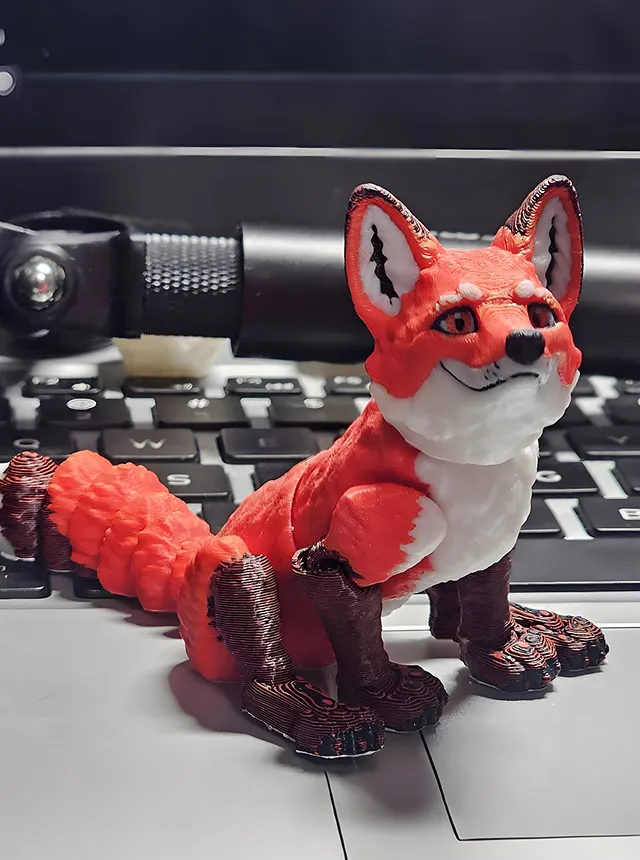
Multi-color Fox

Articulated Easter Dragon

Educational Insects Sorting Puzzle
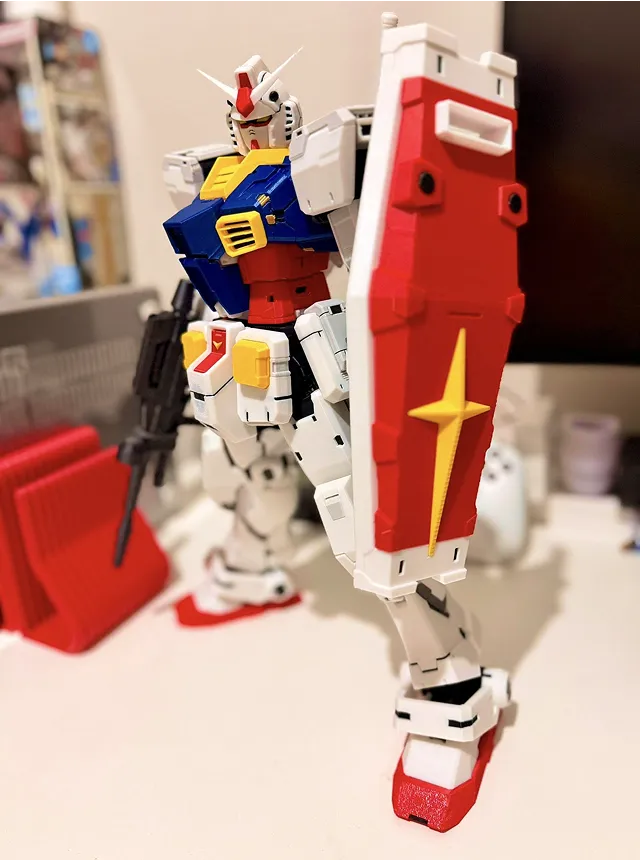
RX-78NT-1 ALEX
Articulated Charizard

Chameleon & Tree Stand

Swing to the Moon Sculpture

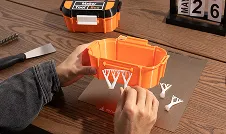
Makerchip Storage Display Box
See How Much You Can Save
Compare material waste and filament costs based on your own printing habits, and see how much you could save with Snapmaker U1.

Bring Ideas to Life
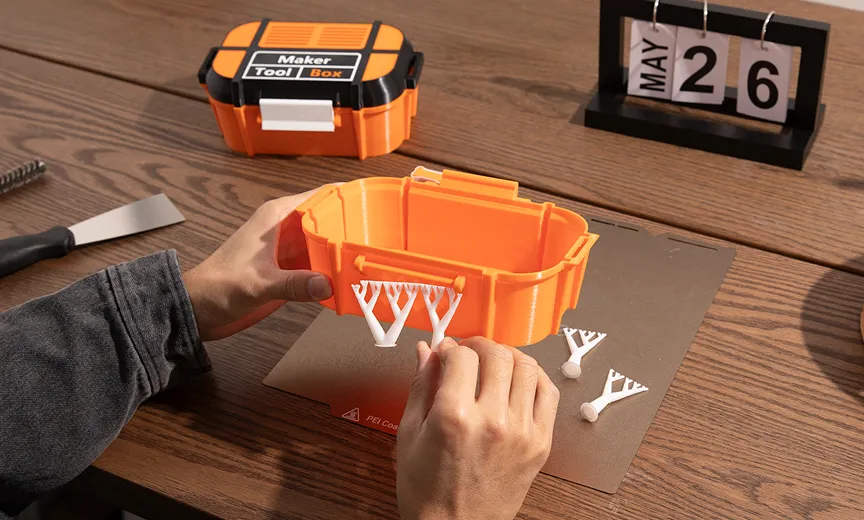
Make colorful, interactive projects with moving parts and easy support removal.


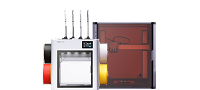
Get Started with Snapmaker U1
- 5X More Speed. 5X Less Waste.
- SnapSwap™ 4-Toolhead System with 5s Tool Change
- Multi-Color & Multi-Material Printing
- Smooth Printing with Smart Calibration
See What Others Are Creating
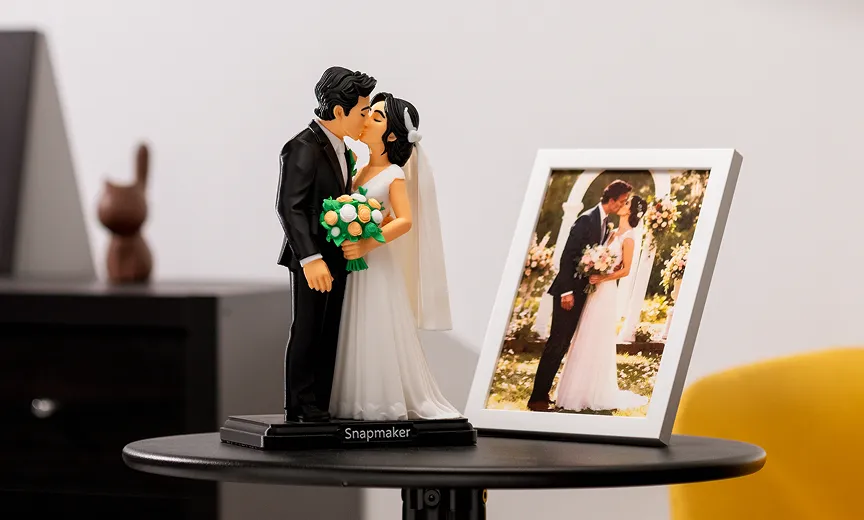
See how other makers add a playful twist to life, with movable toys, interactive games and more.








Notes:
[1] Printed creations are from actual users. As real-world printing parameters vary, print duration, material consumption and other relevant data for the illustrated cases may differ with different settings. "Others" refers to 3D printers that use a filament changer to swap materials.
[2] The average number of color changes per layer is calculated by dividing the total number of color swaps in the print job by the total number of layers. A higher value indicates more frequent swapping and greater purge waste. Factors influencing this include the color count, their layout, model height, and layer height. This calculator assumes a default layer height of 0.2 mm, but other values can be estimated manually or retrieved from slicer software.
[3] The average weight of purge waste per swap is calculated by dividing the total purge waste (by weight) by the number of swaps. This depends on color count and layout (dark-to-light swaps require more purging to avoid color contamination) and the purge multiplier set in the slicer (higher values lead to more purge material consumed). You can use slicer software to retrieve the total purge waste and swap count of your print, then select the closest estimated value in the dropdown menu.
[4] The average color swap count per layer and weight of purge waste per swap used in this calculator are based on typical values from Snapmaker testing. Actual slicing results may vary depending on model geometry, color layout, and print settings. All calculations are for reference only.